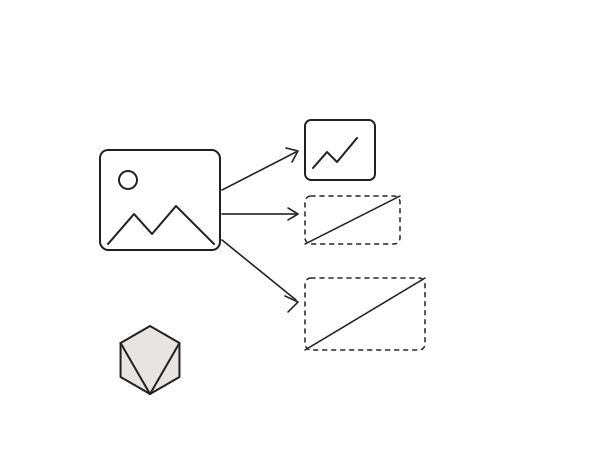
Upload a single photo to WordPress and you do not get one file, you get five, six, sometimes a dozen. Open your uploads folder over FTP after a busy month and it is full of image-300x200.jpg, image-1024x683.jpg, image-1536x1024.jpg and more, all generated from one original. On an image-heavy site that quietly bloats your disk usage and makes every backup and migration slower than it needs to be. Here is the snippet I use to stop WordPress generating the sizes I never actually serve.
Why WordPress makes so many copies
Every time you upload an image, WordPress creates a set of intermediate sizes: thumbnail, medium, medium_large and large, plus 1536x1536 and 2048x2048 for high-DPI screens. On top of that, your theme and plugins register their own sizes through add_image_size(). A WooCommerce and Elementor theme can easily push the count past ten files per upload. Most of those variants are never placed on a page, so they are pure overhead sitting on disk and in every backup.
The fix: stop the extra sizes at upload
WordPress builds its size list through the intermediate_image_sizes filter, so I hook in and strip out the ones I do not want. This keeps the original file and the 150x150 thumbnail and drops the rest:
// Remove default sizes
add_filter( 'intermediate_image_sizes', function( $sizes ) {
    $targets = [ 'medium', 'medium_large', 'large', '1536x1536', '2048x2048' ];
    return array_diff( $sizes, $targets );
} );

// Optional: remove theme-added sizes (if any)
add_action( 'init', function() {
    remove_image_size( 'another-custom-size' ); // repeat this line for each custom size you want to remove
} );
The first filter removes the default medium, large and high-DPI sizes. The optional init action is where you remove any custom sizes your theme added, one remove_image_size() call per name. To find those names, check the theme's add_image_size() calls and pass each one in.
One honest caveat: the large, medium_large and 1536 sizes feed the responsive srcset WordPress builds, so removing all of them means large screens may load the full-resolution original. Keep the couple of sizes your design genuinely uses and only cut the ones you do not, which is the whole point of editing the array by hand rather than nuking everything.
How to install it
- Install and activate the free Code Snippets plugin.
- Go to Snippets, Add New, and paste the code above.
- Set it to run everywhere, then save and activate.
I never do this in functions.php. Code Snippets keeps it separate from the theme so it survives updates, and I can toggle it off in one click if I ever need a size back. Note that this only affects images uploaded after the snippet is active. Existing images keep the copies already generated, so on an established site I usually clear out the orphaned files with a regenerate thumbnails run or a manual cleanup before I trust the smaller footprint in my backups.
Still works in 2026
The intermediate_image_sizes filter and remove_image_size() are both stable core WordPress. I run this on lean client sites in 2026 and it noticeably shrinks the uploads folder and speeds up backups and migrations.
The snippet lives on GitHub: djaysan/wp-disable-image-sizes. Star it or fork it if it saves you some space.
Need a hand keeping a WordPress build lean and fast? Get in touch.